LinkedIn Profile Header Image Size 2026: The Complete Guide
Your LinkedIn banner (also called the background photo or cover image) is the wide strip behind your profile picture. It is the largest visual real estate on your profile — yet most professionals leave it as the default grey. In 2026, getting it right is one of the easiest ways to stand out.
The short answer:
LinkedIn header/banner image size in 2026 is 1584 × 396 pixels at a 4:1 aspect ratio, maximum 8 MB, JPG or PNG.
# 1. The Exact Specifications (2026 Cheat Sheet)
| Setting | Value |
|---|---|
| Recommended dimensions | 1584 × 396 px |
| Aspect ratio | 4:1 (width is four times the height) |
| Minimum dimensions | 1192 × 220 px |
| Maximum file size | 8 MB |
| Accepted formats | JPG, PNG, GIF (static) |
| Safe zone (desktop) | Keep important content away from the bottom-left 170 px — that is where your profile picture overlaps |
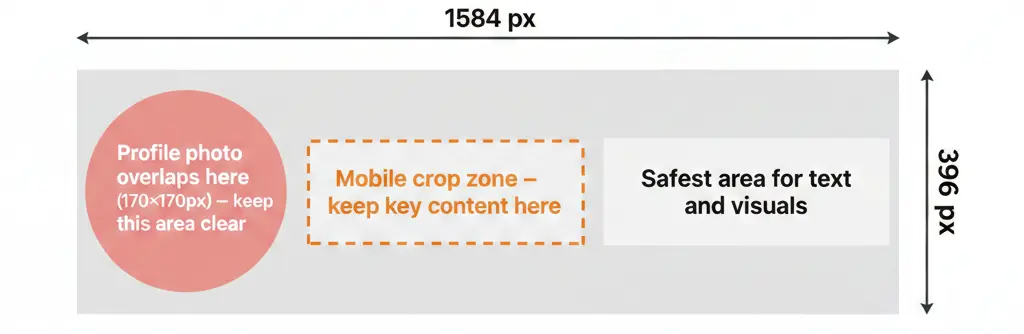
⚠ Watch out for the safe zone: On desktop, your circular profile photo sits in the bottom-left corner of the banner, covering roughly 170 × 170 px of content. On mobile, the banner is cropped to approximately 1:1 in the centre. Keep your key text and visuals in the centre-right portion of the image to be safe on all devices.
# 2. Profile Picture vs. Banner: What Is the Difference?
People frequently confuse the two LinkedIn photos. Here is a quick breakdown:
| Photo | Shape | Size | Purpose |
|---|---|---|---|
| Profile picture | Circle (1:1) | 400–800 × 400–800 px | Your face / personal brand |
| Background / banner | Rectangle (4:1) | 1584 × 396 px | Context, credibility, brand story |
If you are looking for profile picture specs, read our full guide: The Ultimate LinkedIn Profile Picture Guide for 2026.
# 3. What Should Your LinkedIn Banner Say?
Think of your banner as a billboard that works alongside your headshot. Where your profile photo answers "Who are you?", your banner answers "What do you do and why should I care?"
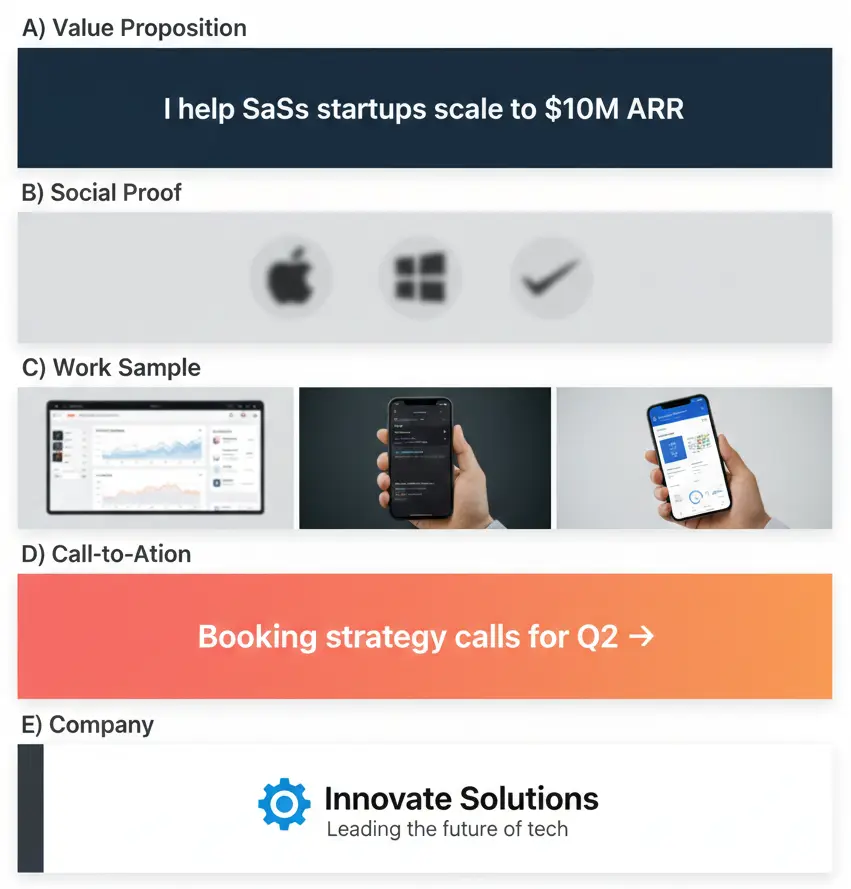
Here are the five most effective banner strategies in 2026:
A. The Value Proposition Banner
State what you do and who you help in one short line. Example: "I help SaaS startups grow from $1M to $10M ARR." Keep the background clean — a subtle gradient or a blurred city skyline works well.
B. The Social Proof Banner
Logos of publications, clients, or conferences you have been featured in. Even three recognisable logos build instant authority and curiosity.
C. The Work Sample Banner
Designers, photographers, and marketers should show their work directly in the banner. A three-panel horizontal collage fits perfectly at 1584 × 396 px.
D. The Call-to-Action Banner
For founders and consultants: include a direct CTA like "Booking strategy calls for Q2 — link in featured section." This turns passive profile visitors into leads.
E. The Company / Team Banner
If your personal brand is tightly linked to your employer, use the company's official LinkedIn banner. It signals stability and team alignment, which recruiters notice.
# 4. Design Tips for a High-Impact Banner
- Keep text minimal and large. LinkedIn compresses images on mobile. Use a font size equivalent to at least 40–48 pt in your design tool — anything smaller becomes illegible on phones.
- Use contrast. Dark text on a light background, or light text on a dark background. Avoid placing text on busy photography without a semi-transparent overlay.
- Align to the right. Because your profile photo covers the bottom-left, place any important text or visuals in the centre or right third of the banner.
- Use your brand colours. Even if you are not a designer, using a consistent palette (2–3 colours max) makes your profile look intentional and polished.
- Export at 1584 × 396 px at 72 DPI. Higher resolution will not improve quality on-screen but will increase file size. Keep files under 1 MB for fast loading.
Free tools for creating the banner: Canva has a pre-sized "LinkedIn Banner" template at exactly 1584 × 396 px. Adobe Express and Figma also work well. If you want a blank canvas, simply create a new document at 1584 px wide by 396 px tall in any design tool.
# 5. How to Upload Your LinkedIn Banner
- Go to your LinkedIn profile page.
- Click the pencil / edit icon that appears when you hover over the background banner area (top right of the banner).
- Select "Change photo" and upload your 1584 × 396 px image.
- LinkedIn will show a crop preview — drag to reposition if needed.
- Click "Apply" then "Save".
Changes are visible to your connections and visitors immediately. There is no approval process.
# 6. Common Mistakes to Avoid
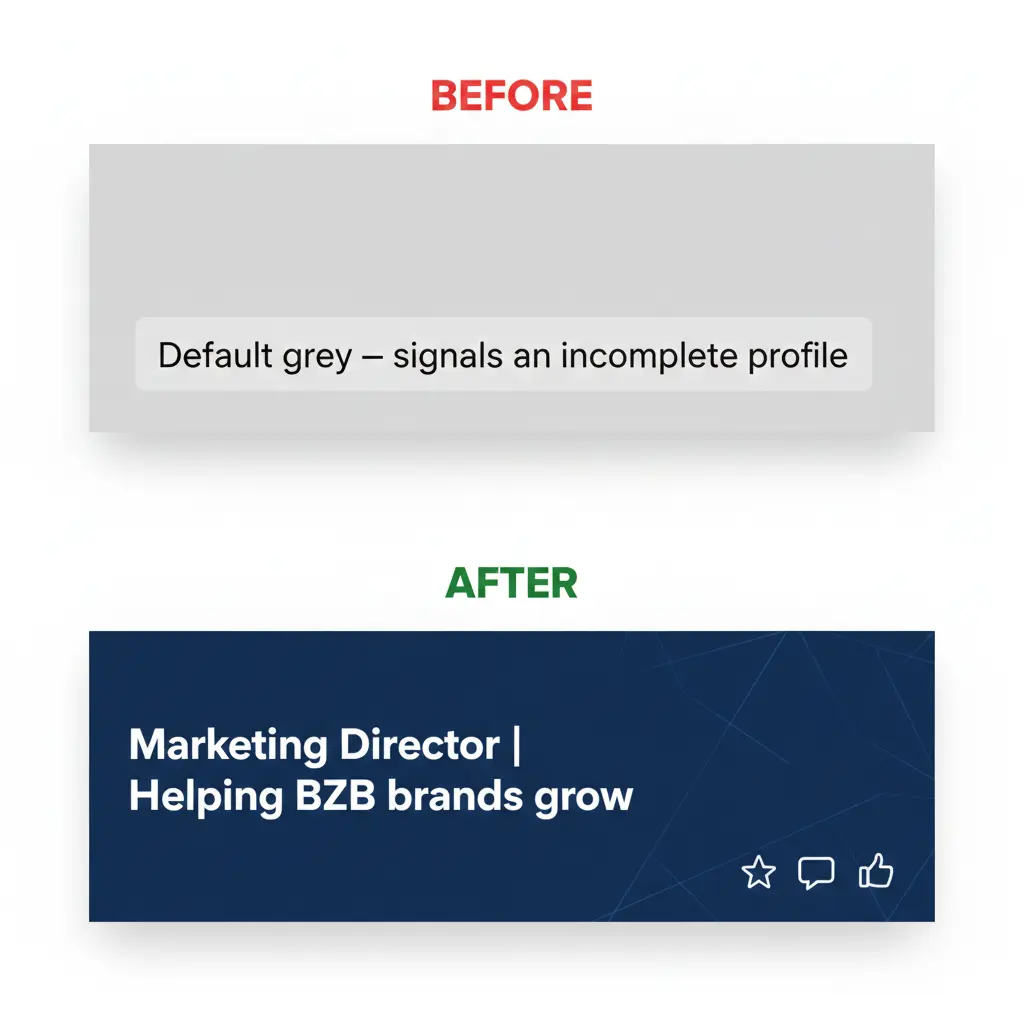
- Leaving the default grey banner. This signals that your profile is incomplete — a red flag to any recruiter or potential client.
- Using the wrong aspect ratio. Uploading a square or portrait image will result in heavy cropping and a zoomed-in, blurry banner.
- Putting your name or contact info in the bottom-left corner. Your profile photo will cover it entirely on desktop.
- Using a very small file. Anything below 1192 × 220 px will appear pixelated on standard monitors, let alone Retina displays.
- Recycling your Twitter/X header. Twitter's header size is 1500 × 500 px — a different aspect ratio. Reusing it will result in cropping on LinkedIn.
# FAQ: LinkedIn Banner Size 2026
Q: What is the LinkedIn background photo size in 2026?
A: The recommended LinkedIn background/banner photo size is 1584 × 396 pixels at a 4:1 aspect ratio, with a maximum file size of 8 MB. Use JPG or PNG format.
Q: Is the LinkedIn banner size different from the profile picture size?
A: Yes. The profile picture is a circle cropped from a square image (400–800 × 400–800 px). The banner/header image is a wide rectangle at 1584 × 396 px (4:1 ratio). They are uploaded separately.
Q: What size should my LinkedIn cover photo be in pixels?
A: 1584 pixels wide by 396 pixels tall is the standard for 2026. This is the same as it has been for the past few years — LinkedIn has not changed these dimensions.
Q: Can I use the same banner on LinkedIn and Twitter/X?
A: No. Twitter/X headers are 1500 × 500 px (3:1 ratio), while LinkedIn uses 1584 × 396 px (4:1 ratio). The different aspect ratios mean the same image will be cropped differently and you should create separate versions for each platform.
Q: Does my LinkedIn profile picture need to match my banner?
A: Not technically, but visually they should complement each other. A clean, professional headshot looks best against a banner with colours, fonts, or themes that reinforce your personal brand. If possible, use a banner background colour that contrasts with the colours in your headshot.
# Your Profile Is Only as Strong as Its Weakest Photo
A polished banner sets the stage — but it is your profile picture that makes the first impression. LinkedIn's own data shows that profiles with professional headshots receive up to 21× more views. If your profile photo is a selfie or a casual snapshot, visitors will leave before they ever read your banner.
💡 Not sure if your current profile photo measures up?
Try our free Rate My Photo tool — upload your photo and get an instant AI score (0–100) with specific improvement tips on lighting, framing, and expression.
Upgrade your profile picture to match your new banner
Generate 20+ studio-quality AI headshots from a single selfie — in minutes, from home.
Get Your AI Headshot Now